Tasks & The Board
Understanding the kanban board, creating tasks, and managing them through the pipeline
The board is where everything happens. Tasks move through columns from left to right — you review at the end.
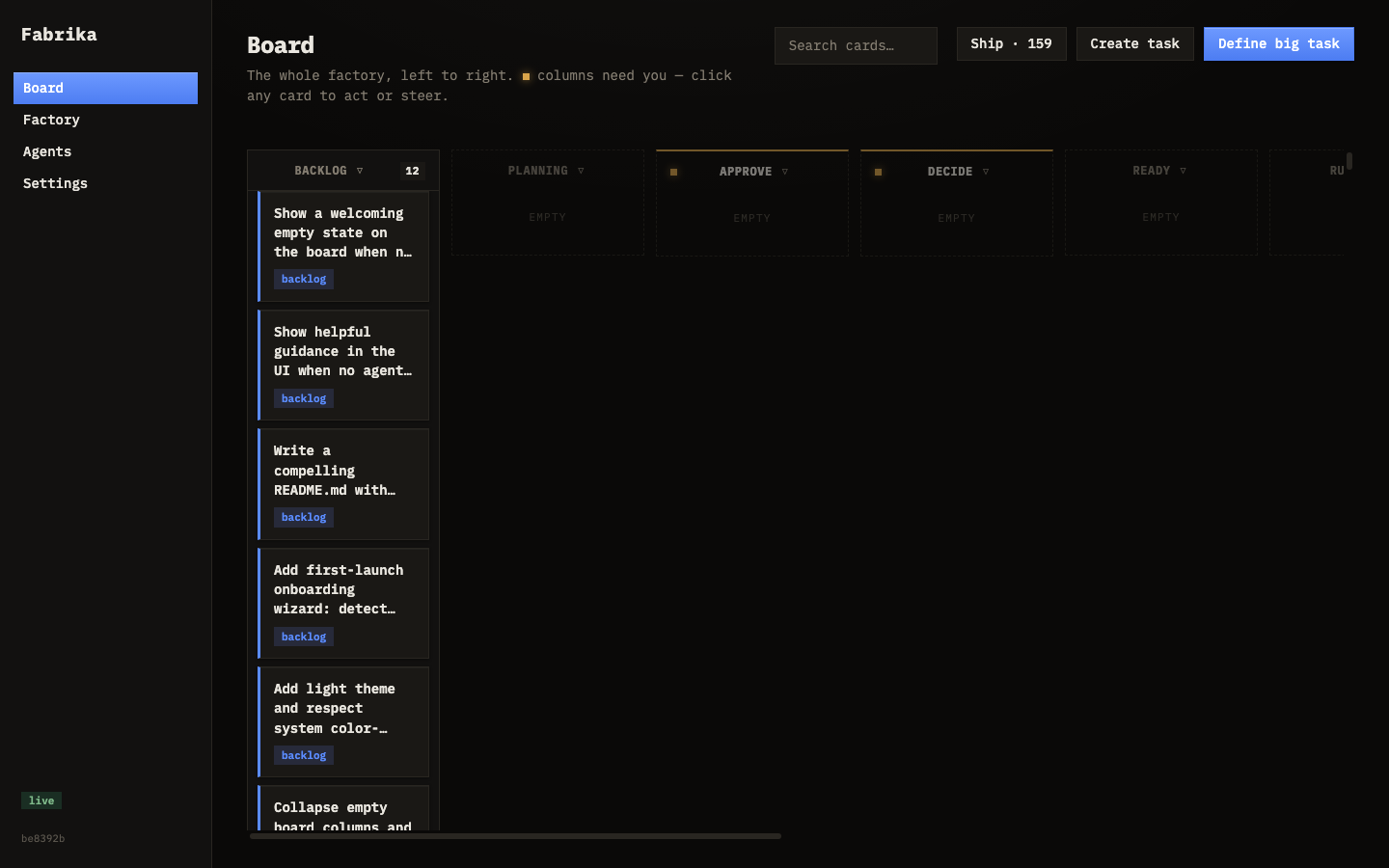
Board columns
Each column is a stage in the pipeline. Tasks start on the left and flow right:
| Column | What it means |
|---|---|
| Backlog | Ideas parked for later. Promote when ready. |
| Planning | Big tasks being decomposed into subtasks by a planner agent. |
| Approve | A plan is ready — you approve or revise it. |
| Decide | Agent needs your judgment on an approach. Answer to unblock. |
| Ready | Waiting for an available agent. |
| Running | An agent is working on it. |
| Verifying | Tests and gates are running. |
| Review | Done — waiting for your approval. |
| Audit | Post-merge spot check (random sample). |
| Merged | Accepted and merged into your codebase. |
| Closed | Terminal — can be deleted. |
Empty columns collapse to keep the board clean.
Creating a task
Click Create task in the board header. Fill out the form:
- Title — short and descriptive
- Spec — what to build, where, any constraints
- Images — paste or attach screenshots for context
- Verify commands — custom checks beyond the default test suite
- Tags — comma-separated labels for filtering
- Priority — Low, Medium, or High
- Risk tier — Low, Medium, or High (controls gate strictness)
Reviewing a task
Click any task card to open the detail panel. You’ll see:
- The full diff (what changed)
- Gate results (build, lint, tests, mutation testing)
- The agent’s notes
- Comment thread
From the detail panel you can:
- Accept — merge the change
- Reject — kick it back with feedback
- Request changes — minor revisions without a full retry
Batch accept
When several tasks land in review, you can accept them all at once. Click the column action button or use the API.
Search and filter
Use the search bar to find tasks by title or spec. Each column has a filter dropdown to narrow by risk tier, agent, or tags.
Task cards
Each card shows:
- Title — the task name
- Agent avatar — which agent worked on it
- Risk tier badge — low, medium, or high
- Push status — whether the merge has been pushed to remote
- Agent tags — labels applied to the task